Setting up a GROMACS cluster
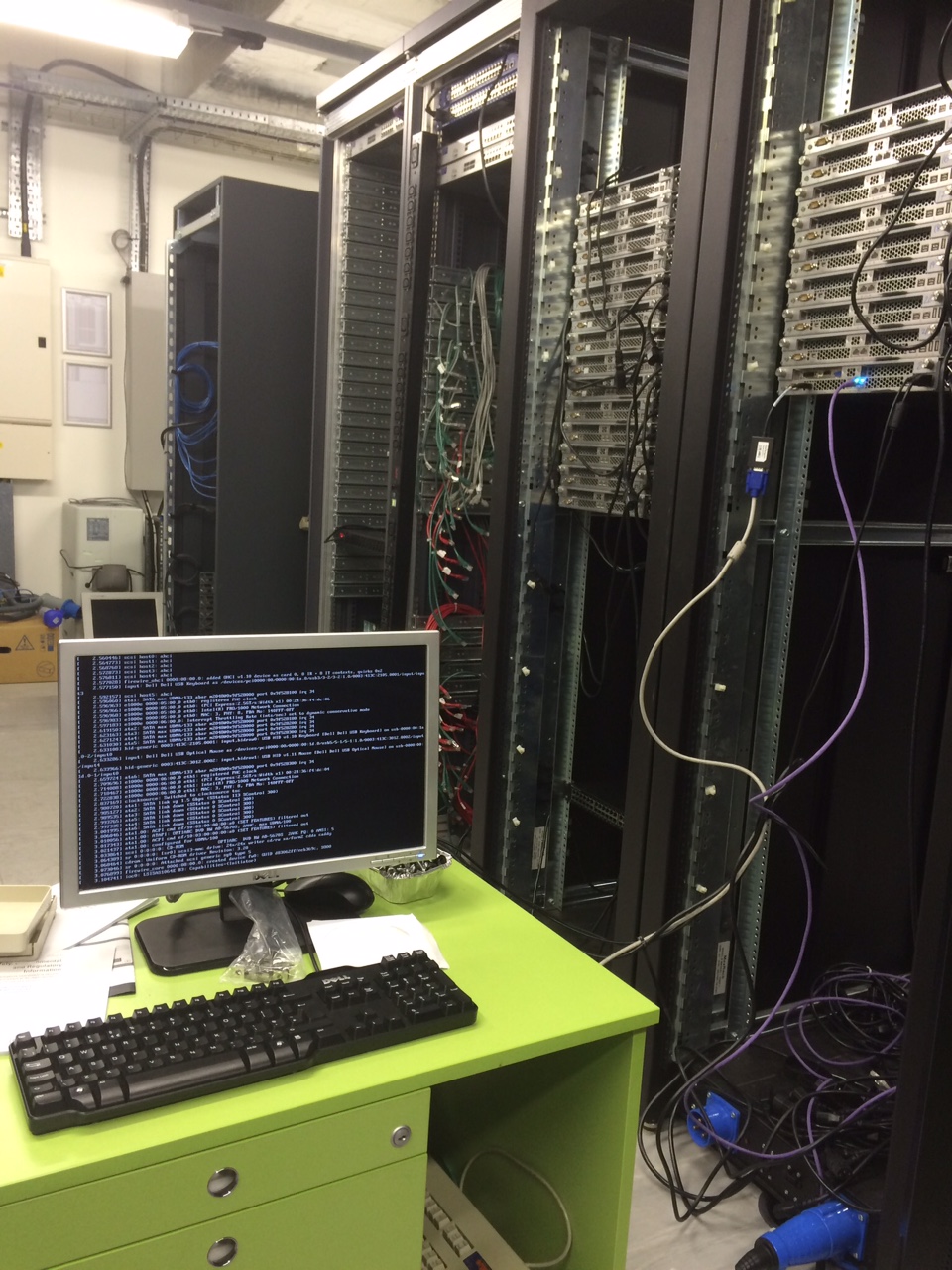
Recently I've moved to the John Radcliffe hospital and my old lab kindly let me have some old servers that were switched off. This pushed me to learn how to setup them up as a compute cluster with a scheduler for running GROMACS jobs. I've wanted to learn this for years, having used many clusters myself, but haven't plucked up the courage until now. This post is a detailed walk-through on how I chose to do this. During the process I did a lot of Googling and have written the post I would have liked to have found; long, comprehensive and a bit verbose. Since it is long so let's break it down into four tasks. [caption id="attachment_3942" align="alignright" width="261"]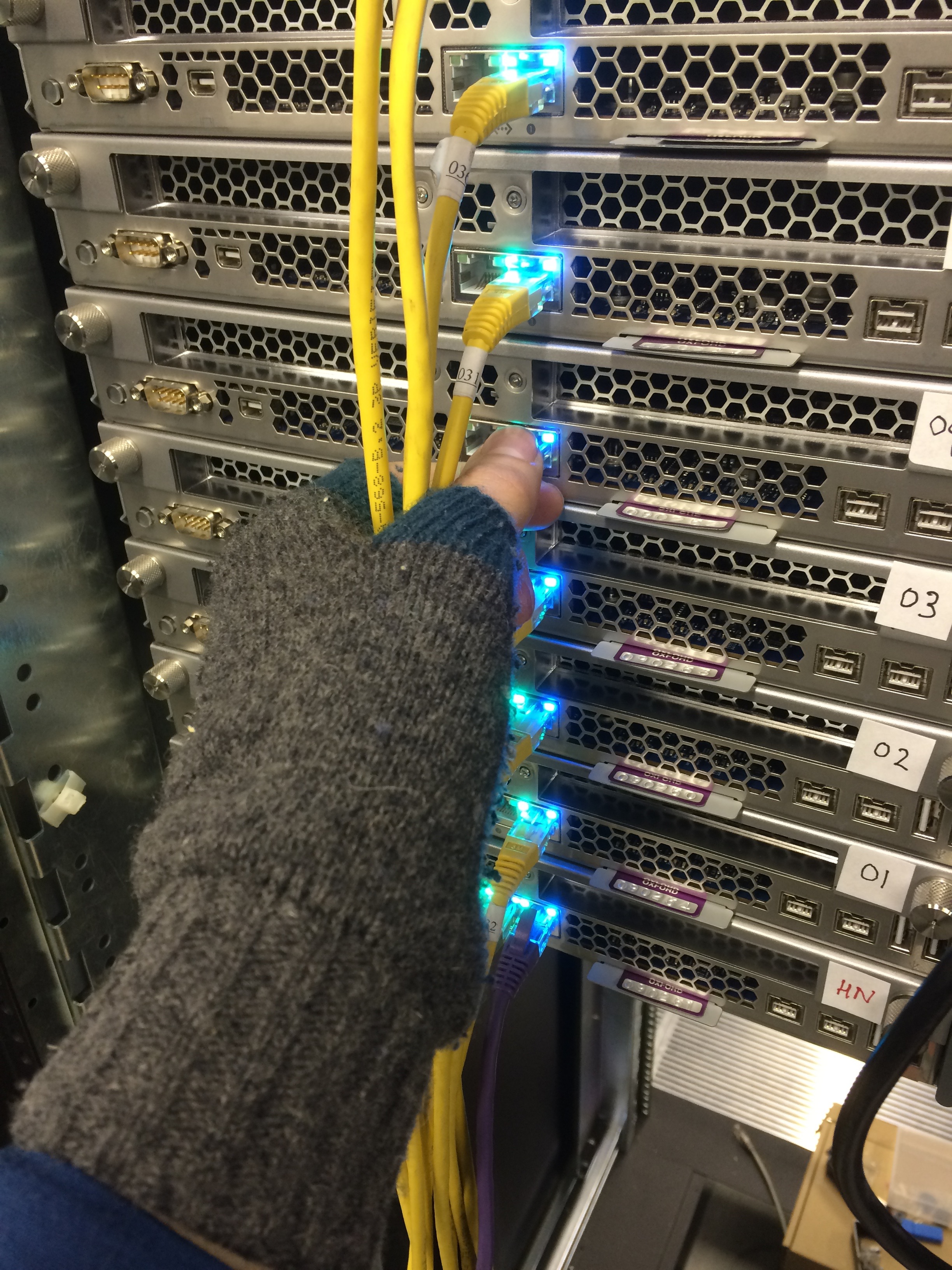 Fingerless gloves and a woolly hat can be useful in a cold, noisy machine room[/caption] 1. Install Ubuntu on each machine 2. Setup networking, including sharing directories on the headnode via NFS 3. Using environment modules, compile GROMACS into one of the shared directories so all the machines in the cluster can run lmx 4. Install SLURM
1. Install Ubuntu
[caption id="attachment_3931" align="alignright" width="373"] Untangling ethernet cables can be surprisingly tricky[/caption] On the Apple Xserves, the only way I have found of doing this is via CD or USB stick. Because they are EFI-boot machines I cannot get PXE booting to work and therefore I've never been able to get ROCKS or OSCAR working. Since I am sitting in a cold and noisy machine room, I had hoped to install say four nodes at once using four CDs, however, I've found that if you swap the monitor from one machine to another (by unplugging the mini DisplayPort-to-VGA adaptor from the back of the machine), it won't work when you reconnect later to see how the install is going. Since I only have two monitors, that limits me to two installations at a time. Installation time from CD was 18 minutes, from USB stick around 14 minutes. I used Ubuntu 14.04.4 Server. Since I am setting up the cluster just for me to begin with, I setup the same user with the same password on each machine - this user is given a UID and GID of 1000 by default. During the process you have to make various decisions. For the record I chose a guided partition of the whole disc using LVM, to automatically install security updates and to install the open-ssl and mail servers. The latter to be configured as a local mail server using the hostname. As we are talking about hostnames, this is what I chose for the private network.
| hostname | Private IP |
|---|---|
| headnode | 192.168.0.100 |
| node01 | 192.168.0.1 |
| node02 | 192.168.0.2 |
| ... | ... |
| node15 | 192.168.0.15 |
Update the packages on each machine,
$ sudo apt-get update -y && sudo apt-get upgrade -yThere are also some common packages each machine will need
$ sudo apt-get install environment-modules htop slurm-llnlFinally, each machine will need a mount point for the NFS software share
$ sudo mkdir /opt/software2. Setup networking
We need to setup the cluster so each compute node gets assigned a static private IP by the headnode using DHCP and then each compute node can see the outside network by communicating via the headnode using NAT. Most of the work here is on the headnode.
Headnode
At present the public IP of the headnode is assigned by DHCP. Edit /etc/network/interfaces.
$ sudo vim /etc/network/interfacesThe file looks like
# The loopback network interface
auto lo
iface lo inet loopback

# The primary network interface
auto eth0
iface eth0 inet dhcp

auto eth1
iface eth1 inet static
address 192.168.0.100
network 192.168.0.0
netmask 255.255.255.0
broadcast 192.168.0.255
Then edit the hosts file
$ sudo vim /etc/hosts

127.0.0.1 localhost
192.168.0.100 bioch6054
192.168.0.1 node01
192.168.0.2 node02
192.168.0.3 node03
..
And finally edit/check the hostname is consistent.
$ sudo vim /etc/hostnameA reboot here wouldn't go amiss. Now we can setup the headnode to use DHCP/NAT. First, find out the name of the DNS servers that the headnode has obtained via DHCP and make a note of these.
$ cat /etc/resolv.conf
# Dynamic resolv.conf(5) file for glibc resolver(3) generated by resolvconf(8)
# DO NOT EDIT THIS FILE BY HAND -- YOUR CHANGES WILL BE OVERWRITTEN
nameserver 129.68.1.150
nameserver 163.1.4.1
nameserver 129.67.71.244
search bioch.ox.ac.uk
Edit
$ sudo vim /etc/sysctl.confso this line is uncommented
net.ipv4.ip_forward=1Save the file and run the following command to make the change effective without a reboot.
$ sudo sysctl -w net.ipv4.ip_forward=1Now edit /etc/rc.local
$ sudo vim /etc/rc.localMake sure the following two lines appear before the exit 0 line in the file.
/sbin/iptables -P FORWARD ACCEPT
/sbin/iptables --table nat -A POSTROUTING -o eth0 -j MASQUERADE
To make these iptables rules active without rebooting, run the following commands:
$ sudo iptables -P FORWARD ACCEPT
$ sudo iptables –-table nat -A POSTROUTING -o eth0 -j MASQUERADE
Now install the DHCP server
$ sudo apt-get install isc-dhcp-serverand edit its configuration file
$ sudo vim /etc/dhcp/dhcpd.confThese are the bits of the file I changed. First need to add the DNS servers
option domain-name-servers 129.67.1.180, 163.1.2.1, 129.67.72.244;Mark this as the authoritative server
authoritative;And define the subnet
subnet 192.168.0.0 netmask 255.255.255.0 {
option routers 192.168.0.100;
option subnet-mask 255.255.255.0;
option broadcast-address 192.168.0.255;
group {
    host node01 { hardware ethernet 00:24:35:f3:db:86; fixed-address 192.168.0.1; }
    host node02 { hardware ethernet 00:24:35:f3:df:7e; fixed-address 192.168.0.2; }
    host node03 { hardware ethernet 00:24:35:f3:dc:74; fixed-address 192.168.0.3; }
    }
}
The bit in the group is important; here each compute node is identified by its MAC address and assigned a fixed IP address. The Xserves have a handy pull-out card at the back that tells you the MAC address of each ethernet port so there is no need to go digging around with ifconfig. Finally, tell DHCP that requests will come via the second ethernet port. Edit /etc/default/isc-dhcp-server so it reads
INTERFACES="eth1"Now we can setup NFS. What caught me out here is Ubuntu 12.04 installs NFS version 4 by default but nearly all the guides I found were version 3. It sort of worked if you do this, but nodes would start to become unresponsive. Here we shall specify that we are using NFS version 3. On the headnode, the directories that are being exported must exist - we've already created /opt/software above and /home already exists. Install the NFS server
$ sudo apt-get install nfs-kernel-serverNow we add the following lines to /etc/exports
/home 192.168.0.0/24(rw,sync,no_subtree_check,no_root_squash)
/opt/software 192.168.0.0/24(rw,sync,no_subtree_check,no_root_squash)
and edit the server settings
$ sudo vim /etc/default/nfs-kernel-servermaking sure the line reads
RPCMOUNTDOPTS="--manage-gids --no-nfs-version 4"and start the service
$ sudo service nfs-kernel-server startCompute nodes
Don't need to change the /etc/network/interfaces file as using DHCP and this will be setup by default to be.
# The loopback network interface
auto lo
iface lo inet loopback

auto eth0
iface eth0 inet dhcp
Instead copy the /etc/hosts file over (but remember that the loopback address, 127.0.1.1, needs to refer the name of the compute node, not the headnode), and edit the hostname. Again we've already created the mount points, so add the following lines to /etc/fstab to ensure the directories are mounted at boot
bioch6054:/home /home nfs nfsvers=3
bioch6054:/opt/software /opt/software nfs nfsvers=3
A reboot here seems to do the trick. Now we have /home/fowler shared via NFS between all the machines we can setup an ssh keypair for logging without passwords.
$ ssh-keygen -t rsa
$ cd .ssh/
$ cat id_rsa.pub >> authorized_keys
You now should have a networked cluster. Each compute node should pick up a static IP from the headnode, everything should be reachable by a consistent naming scheme (e.g. ssh node02). Files written to the shared directories /home/ and /opt/software should be visible on all machines. The user fowler should be able to write and read files in /home/fowler on any machine and you should have sudo access to any file in the shared directories.
3. Compile GROMACS
We could simply compile GROMACS in the usual way, but install it into /opt/software. There are several problems with this, the main being that it will be dynamically linked to various compiler libraries on the headnode and so the binary won't work on the compute nodes (unless we also install the same compiler there too). Instead we shall use environment modules, which has already been installed on all machines. There are also some good walk-throughs here and here. Roughly speaking, we shall the pre-requisites for GROMACS, including gcc, into /opt/software and then setup 'module files' for each so that we can dynamically alter what is in our $PATH. This makes maintaining multiple versions of code (or the same version compiled using different compilers) much more straightforward and is the approach commonly taken by large computing clusters but it can be useful on a single workstation. The environment modules package has been installed in /usr/share/modules First we need to alter where module looks for modulefiles (the $MODULEPATH).
$ sudo vim /usr/share/modules/init/.modulespathComment out all the lines and add this to the end
/opt/software/modulesNow we can activate modules by loading this shell script
$ source /etc/profile.d/modules.shThe structure I have adopted is to download and compile code in
/opt/software/srcand then install it in
/opt/software/appswith modulesfiles located in
/opt/software/modulesCompiling gcc
The first module to compile is a compiler. We'll need subversion and also flex. This is all still on the headnode
$ sudo apt-get install subversion flexFirst, let's check what versions are
$ svn ls svn://gcc.gnu.org/svn/gcc/tags | grep gcc | grep releaseThe latest stable version is 5.3.0 so let's install that one.
/opt/software/src/gcc/$ sudo svn co svn://gcc.gnu.org/svn/gcc/tags/gcc_5_3_0_release/
/opt/software/src/gcc/$ cd gcc_5_3_0_release/
Download the prerequisites and make a build directory
/opt/software/src/gcc/gcc_5_3_0_release/$ sudo ./contrib/download_prerequisites
/opt/software/src/gcc/gcc_5_3_0_release/$ sudo mkdir build
/opt/software/src/gcc/gcc_5_3_0_release/$ cd build
/opt/software/src/gcc/gcc_5_3_0_release/build$ sudo ../configure --enable-languages=c,c++,fortran,objc,obj-c++ --prefix=/opt/software/apps/gcc/5.3.0 --disable-multilib
/opt/software/src/gcc/gcc_5_3_0_release/build/$ make -j 16
/opt/software/src/gcc/gcc_5_3_0_release/build/$ sudo make install
The make command will take up to an hour. Change the number after the -j flag to match the number of cores on your machine. If this works then we should now have two versions of gcc installed; 4.8.3 from build-essential (/usr/bin/gcc) that is in our $PATH by default and now 5.3.0
$ gcc --version
gcc (Ubuntu 4.8.4-2ubuntu1~14.04.1) 4.8.4

$ /opt/software/apps/gcc/5.3.0/bin/gcc --version
gcc (GCC) 5.3.0
Now we need to make a module file
$ cd /opt/software/modules
/opt/software/modules/$ sudo mkdir gcc
/opt/software/modules/$ cd gcc
/opt/software/modules/gcc/$ sudo touch 5.3.0
/opt/software/modules/gcc/$ sudo vim 5.3.0
and mine looks something like this
#%Module1.0#####################################################################
##
## Application module file
##
proc ModulesHelp { } {
global version
global app
puts stderr "\tAdds `app-$version' to your PATH environment variable and necessary libraries"
}

set app gcc
set version 5.3.0

module-whatis "loads the necessary `$app-$version' library paths"

set BASEPATH /opt/software/apps/$app/$version/

setenv $app $BASEPATH
setenv GCCDIR $BASEPATH

prepend-path PATH $BASEPATH/bin/
prepend-path LD_LIBRARY_PATH $BASEPATH/lib:$BASEPATH/lib64
prepend-path MANPATH $BASEPATH/man/

prepend-path --delim " " CPPFLAGS " -I$BASEPATH/include"
prepend-path --delim " " CFLAGS " -I$BASEPATH/include"
prepend-path --delim " " LDFLAGS " -L$BASEPATH/lib/ -L$BASEPATH/lib64/"

setenv cc gcc
setenv cxx gcc
setenv f77 gfortran
setenv f90 gfortran
setenv f95 gfortran
setenv fc gfortran

setenv CC gcc
setenv CXX gfortran
setenv F77 gfortran
setenv F90 gfortran
setenv F95 gfortran
setenv FC gfortran
Now if we ask what modules are available, we should find there is one
$ module avail

---------------------------- /opt/software/modules -----------------------------
gcc/5.3.0
And no modules are loaded
$ module list
No Modulefiles Currently Loaded.
At the moment the system gcc installed when we ran sudo apt-get install build-essential should be in our $PATH
$ gcc --version
gcc (Ubuntu 4.8.4-2ubuntu1~14.04.1) 4.8.4
If we load the gcc module (no need to specify which version as there is only one at present)
$ module load gcc
$ module list
Currently Loaded Modulefiles:
1) gcc/5.3.0
$ gcc --version
gcc (GCC) 5.3.0
Then you can see the gcc compiler we have just installed is now the active one!
Compiling Open-MPI
Next let's compile open-mpi. The latest stable version is 1.10.2
$ cd /opt/software/src
/opt/software/src/$ sudo mkdir openmpi
/opt/software/src/$ cd openmpi
/opt/software/src/openmpi/$ wget https://www.open-mpi.org/software/ompi/v1.10/downloads/openmpi-1.10.2.tar.gz
/opt/software/src/openmpi/$ tar zxvf openmpi-1.10.2.tar.gz
/opt/software/src/openmpi/$ cd openmpi-1.10.2
/opt/software/src/openmpi/$ sudo mkdir build-gcc53
/opt/software/src/openmpi/$ cd build-gcc53
/opt/software/src/openmpi/build-gcc53$ sudo ../configure --prefix=/opt/software/apps/openmpi/1.10.2/ --enable-shared=yes --enable-static=yes --with-slurm
/opt/software/src/openmpi/build-gcc53$ sudo make -j 16
/opt/software/src/openmpi/build-gcc53$ sudo make install
Then create a modules file
$ cd /opt/software/modules
/opt/software/modules/$ sudo mkdir openmpi
/opt/software/modules/$ cd openmpi
/opt/software/modules/openmpi/$ sudo vim 1.10.2
Mine looks like
#%Module1.0#####################################################################
##
## openmpi modulefile
##
##
proc ModulesHelp { } {
global version

puts stderr "\tAdds 64-bit OpenMPI compiled with GCC to your environment."
puts stderr "\tDirectory: $root"
}

module-whatis "adds OpenMPI to your environment variables"

set app openmpi
set version 1.10.2
set root /opt/software/apps/openmpi/1.10.2

prepend-path PATH $root/bin
prepend-path LD_RUN_PATH $root/lib
prepend-path LD_LIBRARY_PATH $root/lib
prepend-path MANPATH $root/share/man

append-path -d " " CPPFLAGS -I$root/include
append-path -d " " LDFLAGS -L$root/lib

setenv MPI_HOME $root
setenv MPIRUN $root/bin/mpirun
Now we have two modules
$ module avail
---------------------------- /opt/software/modules -----------------------------
gcc/5.3.0 openmpi/1.10.2
### Compiling GROMACS Now, at last, we can tackle GROMACS. I could have also put FFTW into modules, but GROMACS is quite happy downloading it and compiling FFTW itself so I haven't bothered. Also if we were using GPUs, I should have installed CUDA into my modules, but it looks like the GPU cards I can fit in the limited space inside an Xserve are not powerful enough, so I'm going to ignore that too for the present. First, let's download and unpack GROMACS
$ cd /opt/software/src
/opt/software/src/$ sudo mkdir gromacs
/opt/software/src/$ cd gromacs
/opt/software/src/gromacs/$ wget ftp://ftp.gromacs.org/pub/gromacs/gromacs-5.1.2.tar.gz
/opt/software/src/gromacs/$ tar zxvf gromacs-5.1.2.tar.gz
/opt/software/src/gromacs/$ cd gromacs-5.1.2
/opt/software/src/gromacs/gromacs-5.1.2/$ sudo vim install.sh
In this shell script (install.sh) I'm going to record all the options I gave to GROMACS. This is useful since they are a bit more complex and I'm likely to compile GROMACS fairly frequently. This is one I have adapted from my old lab and first compiles "normal" GROMACS and then the MPI version of mdrun.
#! /bin/bash

GROMACS_SRC='/opt/software/src/gromacs/gromacs-5.1.2'
INSTALL_DIR='/opt/software/apps/gromacs/5.1.2'

source /etc/profile.d/modules.sh
module purge
module load openmpi/1.10.2
module load gcc/5.3.0

mkdir $GROMACS_SRC/build-gcc53
cd $GROMACS_SRC/build-gcc53

echo $PWD

cmake $GROMACS_SRC \
-DCMAKE_INSTALL_PREFIX=$INSTALL_DIR \
-DGMX_MPI=OFF \
-DCMAKE_C_COMPILER=gcc \
-DCMAKE_CXX_COMPILER=g++ \
-DGMX_BUILD_MDRUN_ONLY=OFF \
-DGMX_BUILD_OWN_FFTW=ON
-DGMX_X11=OFF \
-DGMX_GPU=OFF \
-DGMX_DEFAULT_SUFFIX=OFF \
-DGMX_CPU_ACCELERATION=AVX \
-DBUILD_SHARED_LIBS=OFF \
-DGMX_EXTERNAL_BLAS=OFF \
-DGMX_EXTERNAL_LAPACK=OFF

make -j 16

make install

cd ..

mkdir $GROMACS_SRC/build-gcc53-openmpi
cd $GROMACS_SRC/build-gcc53-openmpi

cmake $GROMACS_SRC \
-DCMAKE_INSTALL_PREFIX=$INSTALL_DIR \
-DGMX_MPI=ON \
-DCMAKE_C_COMPILER=mpicc \
-DCMAKE_CXX_COMPILER=mpicxx \
-DGMX_BUILD_MDRUN_ONLY=ON \
-DGMX_BUILD_OWN_FFTW=ON \
-DGMX_X11=OFF \
-DGMX_GPU=OFF \
-DGMX_DEFAULT_SUFFIX=ON \
-DBUILD_SHARED_LIBS=OFF \
-DGMX_EXTERNAL_BLAS=OFF \
-DGMX_EXTERNAL_LAPACK=OFF

make -j 16

make install
Then we can run this as root
/opt/software/src/gromacs/gromacs-5.1.2/$ sudo ./install.shand wait. Then create a module file
$ cd /opt/software/modulefiles
/opt/software/modulefiles/$ sudo mkdir gromacs
/opt/software/modulefiles/$ cd gromacs
/opt/software/modulefiles/gromacs/$ sudo vim 5.1.2
which looks like
#%Module1.0#####################################################################
##
## gromacs Modulefile
##
##
proc ModulesHelp { } {
global version

puts stderr "\tAdds 64-bit GROMACS compiled with GCC to your environment."
puts stderr "\tDirectory: $root"
}

module-whatis "adds GROMACS to your environment variables"

if {! [ is-loaded openmpi/1.10.2 ] } {
module load openmpi/1.10.2
}
prereq openmpi/1.10.2

if {! [ is-loaded gcc/5.3.0 ] } {
module load gcc/5.3.0
}
prereq gcc/5.3.0

set version 5.1.2
set app gromacs
set root /opt/software/apps/gromacs/${version}

prepend-path PATH $root/bin
prepend-path LD_RUN_PATH $root/lib
prepend-path LD_LIBRARY_PATH $root/lib
prepend-path MANPATH $root/share/man

setenv GMXDIR $root
setenv GMXBIN $root/bin
setenv GMXLDLIB $root/lib
setenv GMXMAN $root/share/man
setenv GMXDATA $root/share
setenv GMXFONT 10x20
So now
$ module avail
---------------------------- /opt/software/modules -----------------------------
gcc/5.3.0 gromacs/5.1.2 openmpi/1.10.2
Let's try it on a compute node
$ ssh node01
$ module add gromacs
$ gmx -h
:-) GROMACS - gmx, VERSION 5.1.2 (-:

GROMACS is written by:
Emile Apol Rossen Apostolov Herman J.C. Berendsen Par Bjelkmar
Hurray it works!
4. Installing SLURM
As I wrote before, this was the part that scared me most, but turned out to be the easiest. We've already installed SLURM using apt-get on all machines; this has also installed MUNGE which is needed for authentication. The first step is to setup MUNGE on all machines. First we need to create a MUNGE key on the headnode and distribute it to all the machines for authentication.
$ sudo /usr/sbin/create-munge-keyTo copy it to the compute nodes, the easiest thing is to put a copy in your user home directory as this will be shared by NFS.
$ sudo cp /etc/munge/munge.key /home/fowler/Then on each compute node we can copy the file into the right directory
/home/fowler/$ sudo cp munge.key /etc/munge/There is a problem with permissions here; the original key is owned by munge which is part of the munge group. As we've been moving it around with sudo, it is now owned by root. So we also need to change the permissions back on each compute node.
$ sudo chown munge /etc/munge/munge.key
$ sudo chgrp munge /etc/munge/munge.key
There appears to be a bug with Ubuntu as well, this is fixed by adding the following line, on all machines, to /etc/default/munge
OPTIONS="--force"Now on each machine we can start the MUNGE service
$ sudo service munge startand check it is running
$ ps -e | grep mungeNow we are in a position to setup SLURM.
/home/fowler$ cp /usr/share/doc/slurm-llnl/examples/slurm.conf.simple.gz .
/home/fowler$ gunzip slurm.conf.simple.gz
/home/fowler$ mv slurm.conf.simple slurm.conf
/home/fowler$ vim slurm.conf
This is an example, basic SLURM configuration file which you can just alter. All I did was change the following lines from their defaults to match my cluster, which is currently
ControlMachine=bioch6054
..
NodeName=node0[1-2] Procs=16 State=UNKNOWN
PartitionName=production Nodes=node0[1-2] Default=YES MaxTime=INFINITE State=UP
This file needs to be copied to every machine, including the headnode.
/home/fowler/$ sudo cp slurm.conf /etc/slurmNow we can start the SLURM controller on the headnode
$ sudo service slurm-llnl startand the SLURM daemon on each compute note
$ slurrmd -cFor a simple check, run the following on the headnode
$ srun -N1 hostname
node01
Or to try using two nodes
$ srun -N2 hostname
node01
node02
I'm going to assume you have a GROMACS TPR file called at-1-1.tpr that you've made using GROMPP. Let's benchmark the cluster. So on the headnode, create and edit a SLURM job file
/home/fowler$ sudo vim at-1-1.shMine looks like
#!/bin/bash
#SBATCH --nodes=1
#SBATCH --ntasks-per-node=1
#SBATCH --cpus-per-task=1
#SBATCH --time=00:15:00
#SBATCH --job-name=at-1-1

source /etc/profile.d/modules.sh
module load gromacs/5.1.2

gmx mdrun -deffnm at-1-1 -ntmpi 1 -ntomp 1 -maxh 0.1 -resethway -noconfout -stepout 100 -v
This has some benchmarking specific flags. Make sure at-1-1.sh and at-1-1.tpr are both present, then submit it to the queue
$ sbatch at-1-1.sh
Submitted batch job 1
and then we can check the queue
$ squeue
JOBID PARTITION NAME USER ST TIME NODES NODELIST(REASON)
1 productio at-1-1 fowler R 0:28 1 node02
Or, let's run an MPI GROMACS job instead.
#!/bin/bash
#SBATCH --nodes=1
#SBATCH --ntasks-per-node=8
#SBATCH --cpus-per-task=1
#SBATCH --time=00:15:00
#SBATCH --job-name=at-1-1

source /etc/profile.d/modules.sh
module load gromacs/5.1.2

mpirun -np 8 mdrun_mpi -deffnm at-1-1 -maxh 0.1 -resethway -noconfout -stepout 100 -v
Job done!